Photography has always been a balancing act between the art of the capture and the science of the edit. For decades, the darkroom was our second home, a place of chemical smells and red lights. Today, that darkroom is digital, often represented by a catalog of thousands of raw files waiting for your attention. The modern photographer faces a unique challenge: the volume of images we capture has exploded, but the time we have to deliver them hasn’t changed.
Key Takeaways
- Efficiency Overhaul: Modern photo editing apps are shifting from manual slider adjustments to AI-driven workflows that learn your specific style.
- Unified Workflow: The most effective solutions integrate culling, editing, and cloud backup into a single desktop application that bridges local files with cloud processing power.
- Personalized Automation: Unlike static presets, AI profiles analyze each image individually, applying adjustments that mimic your unique editing decisions.
- Volume Management: Specialized tools for culling and batch editing are essential for high-volume genres like weddings, sports, and real estate to maintain consistency and speed.
- Seamless Integration: Top-tier apps work directly with industry-standard software like Adobe Lightroom Classic, ensuring that AI fits into your existing ecosystem rather than replacing it.
Choosing the right photo editing app is no longer just about who has the best saturation slider or the most interesting filters. It’s about workflow. It’s about finding a partner in your process that understands the difference between a good shot and a great one, and more importantly, understands your definition of that difference. This guide explores the landscape of professional photo editing, dissecting the tools that keep our businesses running and diving deep into the technologies that are reshaping how we work.
The Evolution of the Photo Editing App
To understand where we are, we have to look at where we came from. In the early days of digital photography, editing software was designed for the single image. You opened a file, you tweaked it, you saved it. It was a digital replica of the physical darkroom printing process.
As sensors improved and storage got cheaper, we started shooting more. The “single image” editor became a bottleneck. This gave rise to the “catalog” based editors—desktop applications designed to handle thousands of images at once. These tools introduced batch processing and presets, allowing us to copy and paste settings across a scene. It was a massive leap forward, but it had a flaw: it was dumb. A preset doesn’t know that the cloud moved in frame three, or that the subject turned their face to the shadow in frame ten. It applies the same math to every pixel, regardless of context.
Now, we are entering the third era: the era of the intelligent assistant. This isn’t just about applying a look; it’s about interpreting a scene. The newest generation of photo editing apps doesn’t just apply settings; it makes decisions.
The Landscape of Editing Tools
When we talk about a “photo editing app,” we are usually referring to one of three categories:
- Mobile Creative Apps: Great for social media and quick fixes on the fly. They are fun, but rarely fit a professional high-volume workflow.
- Desktop Creative Suites: The heavy lifters. These are the industry standards where deep, pixel-level retouching happens. They offer ultimate control but require significant time investment per image.
- Workflow Automation & AI: The new frontier. These are desktop applications that often leverage cloud computing to process data. They are designed to sit on top of or alongside your creative suite to handle the heavy lifting of volume.
For the professional dealing with weddings, events, real estate, or school portraits, the third category is where the revolution is happening. It’s where we move from being pixel pushers to creative directors of our own work.
The Culling Bottleneck: Solving the First Hurdle
Before we even touch a slider, we have to decide what makes the cut. Culling is arguably the most mentally draining part of post-production. It requires thousands of micro-decisions. “Is this sharp? Is that expression better? Did they blink?”
For a standard wedding shoot, you might come home with 4,000 images to deliver 800. That means you are making 3,200 negative decisions. This “decision fatigue” is real, and it kills creativity.
How Imagen Addresses Culling
Imagen approaches this specific capability not just as a way to hide bad photos, but as a way to intelligently surface the best ones. The application utilizes a “Smart Culling” feature that goes beyond simple previewing.
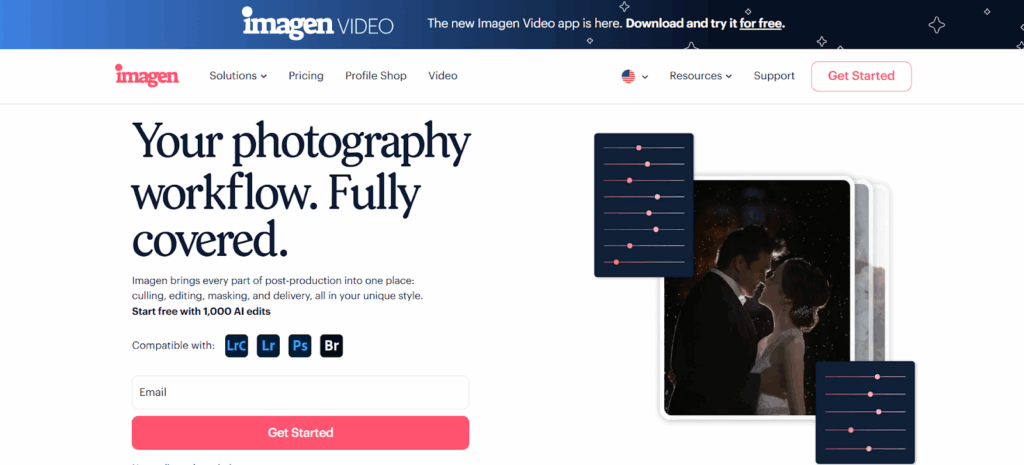
The problem with traditional culling is the manual checking of technical details. You have to zoom in to check focus (100% view), then zoom out to check composition, then toggle between two similar images to check expressions. Imagen automates this technical assessment.
- Face Recognition & Expression Analysis: The software detects subjects and checks for open eyes and smiles. It can even detect kisses, understanding that closed eyes in a romantic moment are a feature, not a bug.
- Duplicate Detection: It groups similar images together. Instead of looking at 10 nearly identical frames of a family formal, Imagen groups them and suggests the best one based on technical scores and expression.
- Technical Filtering: It automatically identifies blurry or out-of-focus shots, flagging them so you don’t waste time considering them.
This capability transforms culling from a hunt for errors into a selection of highlights. By using Imagen for this stage, you are presented with a curated set of candidates rather than a raw dump of data. You retain full control to change ratings or flags, but the heavy lifting of technical verification is done for you.
The Color and Exposure Challenge: The Search for Consistency
Once you have your selections, the real work begins: color correction. This is where the “preset trap” usually happens. You apply a preset to a whole room, but the lighting shifts slightly as you move around. You end up tweaking every single photo.
This manual tweaking is the biggest time sink in the industry. It’s repetitive, and it’s inconsistent. If you edit the first half of a wedding in the morning and the second half late at night, your own perception of “warmth” or “exposure” might shift.
How Imagen Addresses Color and Exposure
This is the core functionality where Imagen differentiates itself from standard editing apps. It moves away from static presets and utilizes a Personal AI Profile.
Instead of applying a fixed value (e.g., “Contrast +10”), Imagen analyzes the image content. It looks at the histogram, the white balance, the skin tones, and the lighting conditions. It then asks, “How would you edit this specific photo?”
This is achieved through a learning process. You feed Imagen your previous catalogs—images you have already edited in Adobe Lightroom Classic. It studies these “before” and “after” examples to build a profile of your style.
- Adaptive Adjustments: If you tend to edit dark, moody reception shots differently than bright, airy outdoor portraits, the profile learns that context. It doesn’t just average your settings; it learns the logic behind your settings.
- Consistent White Balance: One of the hardest things to get right across a mixed-lighting event is skin tone. Imagen balances color temperature and tint individually for every single file, achieving a consistency that is incredibly difficult to maintain manually over thousands of images.
The result is an edit that looks like you did it on your best day, applied to thousands of images in minutes.
The Finishing Touches: Retouching and Composition
In a traditional workflow, after you fix color and exposure, you do a second pass for crop, straighten, and local adjustments. You might need to mask a subject to brighten them, or smooth the skin of a bride. Doing this manually for hundreds of photos is usually impossible due to budget and time constraints, so these steps are often skipped or reserved only for “hero” shots.
How Imagen Addresses Retouching
Imagen democratizes high-end retouching by automating these local adjustments as part of the batch process. It offers a suite of AI Tools that run concurrently with the color edit.
- Crop and Straighten: The app analyzes the horizon lines and the rule of thirds. It can automatically straighten a tilted horizon (crucial for landscape and architectural shots) and apply a crop that centers the subject or balances the composition.
- Subject Masking: This is a game-changer for popping your subjects. Imagen can automatically select the subject and apply specific exposure or clarity adjustments to them, distinct from the background. This mimics the “dodge and burn” techniques of high-end retouchers but applies it to thousands of images at once.
- Smooth Skin: For portrait and wedding photographers, skin texture is a constant concern. Imagen includes an automated “Smooth Skin” feature that detects faces and applies a softening effect that retains texture while reducing blemishes. It handles the tedious work of frequency separation automatically.
By integrating these tools into the initial processing pipeline, Imagen allows you to deliver a “finished” look for the entire gallery, not just the highlights.
Specialized Workflows: The Real Estate Use Case
Different genres have different needs. A real estate photographer doesn’t care about skin smoothing; they care about vertical lines and dynamic range. Standard photo editing apps often force a “one size fits all” approach, but specialized workflows are critical.
How Imagen Addresses Real Estate
Real estate photography is a volume game that relies heavily on technique—specifically, bracketed exposures (HDR) to manage bright windows and dark interiors.
Imagen offers a specialized workflow for this genre:
- HDR Merge: It automatically detects bracketed sets (e.g., 3 or 5 exposures of the same scene) and merges them into a single, balanced image. This isn’t just a simple overlay; it handles the “ghosting” and alignment issues that come with handheld shooting.
- Perspective Correction: In architectural photography, vertical lines must be vertical. Imagen analyzes the geometry of the room and automatically applies perspective correction to fix keystoning, ensuring walls are straight and true.
- Window Pull & Sky Replacement: Dealing with blown-out windows or gray skies is a staple of property marketing. Imagen automates the recovery of window detail and can replace dull skies with more appealing ones (specifically for real estate profiles), adding value to the final listing without extra manual labor.
This specialized capability allows real estate photographers to turn around listings the next morning—a critical speed requirement in the property market.
The Unified Platform: Beyond the Edit
While these individual capabilities—culling, editing, retouching—are powerful on their own, the true value of a modern photo editing app lies in how they connect. Imagen operates as a comprehensive platform that unifies these fragmented steps.
Integration with Adobe Ecosystem
It is important to clarify that Imagen is a desktop application, not a web-based browser tool. This is a crucial distinction for professionals who deal with massive RAW files. You cannot efficiently upload 5,000 RAW files to a browser for editing; the bandwidth just isn’t there.
Imagen works by integrating with Adobe Lightroom Classic. It acts as a bridge.
- Local Management: You keep your heavy RAW files on your local hard drive or fast SSDs.
- Lightweight Upload: Imagen takes the “Smart Previews” or lightweight metadata representations of your images and sends those to the cloud. This data is tiny compared to the raw files.
- Cloud Processing: The heavy lifting—the AI analysis, the decision making—happens on Imagen’s servers in the cloud. This means your computer isn’t bogged down processing thousands of edits.
- Metadata Download: Once the AI is done (usually in minutes), you download the instructions (metadata). Imagen writes these instructions directly into your Lightroom catalog.
This hybrid approach gives you the speed of cloud computing with the local control of desktop software. It also supports Adobe Photoshop and Adobe Bridge, offering flexibility for photographers who prefer those tools.
Cloud Storage and Backup
Another critical component of the platform is safety. Workflow isn’t just about speed; it’s about security. Imagen includes a Cloud Storage solution that integrates into the culling and editing process.
When you upload a project for editing, Imagen can simultaneously back up your optimized high-resolution photos to the cloud. This happens in the background. It solves the “3-2-1” backup rule (3 copies, 2 different media, 1 offsite) automatically. You don’t need a separate cloud backup service running and eating up your bandwidth; it’s part of the same pipe you use for editing.
Step-by-Step Guide: Implementing an AI Workflow
Moving from a manual workflow to an AI-assisted one can feel daunting. Here is a practical framework for getting started with Imagen.
Step 1: Preparation
Before you even open the app, you need to organize your data.
- Cataloging: Ensure your images are in a Lightroom Classic catalog.
- Smart Previews: Generate Smart Previews. This allows for the fastest possible upload speeds.
- Reference Images: If you plan to create a Personal AI Profile, you need to locate your best previous work—about 3,000 images that you have edited manually and are proud of.
Step 2: Creating Your Profile
You have two options here:
- Talent AI Profiles: If you don’t have enough past work or want to try a new style, you can use pre-made profiles from industry-leading photographers. These are ready to go immediately.
- Personal AI Profile: This is the gold standard. You upload your previously edited catalogs. Imagen analyzes them, learning your exposure preferences, your color grading style, and how you handle different ISOs. This training process usually takes less than 24 hours.
Step 3: The Project Workflow
- Import: Import your new shoot into Lightroom.
- Cull: Open Imagen and create a “Culling Project.” Let the AI group duplicates and flag the best shots. Review these selections quickly in the app.
- Edit: Send the selected “keepers” to the “Editing” module. Choose your Personal AI Profile. Select any additional AI Tools you need (e.g., Straighten, Smooth Skin).
- Process: Hit “Edit.” The lightweight data goes to the cloud. You can go grab a coffee.
- Review: When you get the notification (often in under 20 minutes for a wedding), download the edits.
- Final Polish: Open Lightroom. The edits are there. You might need to tweak 5-10% of the images—perhaps an artistic crop or a specific distraction removal. But the heavy lifting is done.
- Deliver: Export your JPEGs directly from Lightroom, or use Imagen’s delivery features to send files.
Challenges and Best Practices
While AI is powerful, it is not magic. It is a tool that requires skill to wield effectively.
Challenge: The “Black Box” Feeling
Some photographers struggle with trusting an algorithm. It can feel like you are losing control.
- Best Practice: Use the “Fine Tune” feature. Imagen allows you to upload your final tweaks back to the system. If you consistently warm up the images by 200 Kelvin, upload those edits. The profile learns. It evolves. You are constantly teaching it.
Challenge: Culling Fatigue vs. AI Trust
Trusting AI to reject photos can be scary. “What if it deletes the best shot?”
- Best Practice: Start with “Cull In.” Instead of asking the AI to delete bad shots, ask it to select the good ones. Review the “rejected” pile quickly to ensure nothing was missed, rather than agonizing over every single frame.
Competitor Landscape
The market for photo editing apps is diverse, and it is helpful to understand where Imagen sits in relation to other methods.
Manual Editing & Outsourcing
The traditional alternative is manual editing. This offers maximum control but at the cost of immense time. Many photographers outsource this to human editing firms.
- Functional Description: Human outsourcers provide a high level of subjective interpretation. You send a catalog, and a week later, you get it back. The cost is generally per-image or per-event, and the turnaround time is measured in days. Communication feedback loops can be slow.
Standard Presets
Presets are the most common “tool” in the industry.
- Functional Description: A preset is a static set of recorded actions. It applies the same settings to every photo. It is instant and free (once purchased), but it requires significant manual adjustment for exposure and white balance on each image. It does not adapt to the image content.
Other AI Approaches
There are other tools entering the AI space.
- Functional Description: Some tools operate strictly as plugins within editing software, using the local computer’s processor (GPU/CPU) to make calculations. This avoids cloud uploads but relies heavily on the user’s hardware specs. Others focus purely on “creative” AI, like sky replacement or generative fill, rather than high-volume workflow consistency.
Imagen distinguishes itself by combining the batch-processing power of the cloud with the personalized learning of the profile, positioning itself specifically as a retention and workflow platform for high-volume businesses.
Conclusion
The definition of a “photo editing app” has changed. It is no longer just a digital canvas; it is a digital partner. For the professional photographer, the goal is sustainability. We entered this industry to create, not to sit behind a monitor moving sliders for 12 hours a day.
By leveraging a platform like Imagen, you are not cutting corners; you are cutting waste. You are removing the friction between the capture and the delivery. Whether you utilize the standalone culling features to tame your backlog, or the fully integrated editing and storage solution to safeguard your business, the technology exists to make your workflow faster, safer, and more consistent.
The future of editing isn’t about the computer doing the art for you. It’s about the computer clearing the path so you can be the artist you were meant to be.
Frequently Asked Questions
1. Is Imagen a web-based app or do I need to install it? Imagen is a desktop application. You must download and install it on your computer. It is not a browser-based tool. This design ensures it can interface directly with your local files and Adobe software.
2. Does Imagen replace Adobe Lightroom Classic? No, it complements it. Imagen integrates directly with Lightroom Classic (and also supports Photoshop and Bridge). It reads your catalogs and writes the edits back into them. You still need your Adobe software to view the final edits and export your photos.
3. Do I need to upload my high-resolution RAW files to the cloud for editing? No. For editing, Imagen uses Smart Previews or compressed metadata, which are very small and upload quickly. You only need to upload high-resolution files if you are using the Cloud Storage backup feature or specific delivery workflows.
4. Can I use Imagen if I don’t have 3,000 edited photos for a profile? Yes. You can start immediately using Talent AI Profiles, which are pre-trained by leading industry photographers. Alternatively, you can create a “Lite Personal AI Profile” using your favorite preset and answering a short survey about your style.
5. How does the “Personal AI Profile” actually learn my style? It analyzes the relationship between the “before” (unedited) and “after” (edited) state of your previously edited images. It looks at parameters like White Balance, Exposure, Contrast, and HSL to understand your preferences in different lighting conditions.
6. What happens if I don’t like the edits Imagen produces? You have full control. You can tweak the edits in Lightroom just like you would with your own work. Furthermore, you can upload these “Final Edits” back to Imagen. This fine-tunes your profile, so it learns from its mistakes and improves for the next batch.
7. Is the “Smart Culling” feature safe? Will it delete my photos? Imagen does not delete your original files. The culling process simply flags or rates them within the project. You can choose to hide “rejected” photos in Lightroom, but the files remain on your drive unless you manually delete them from your disk.
8. Can I use Imagen for genres other than weddings? Absolutely. While very popular for weddings, Imagen has profiles and tools specifically designed for Real Estate, School/Sports (Volume), Newborn, and General Portrait photography. The Real Estate workflow, for instance, includes specific HDR and perspective tools.
9. How secure is the Cloud Storage? Imagen uses enterprise-grade security protocols. Your photos are encrypted during transfer and at rest in the cloud. The platform is designed to handle the privacy and security needs of professional businesses.
10. Does Imagen work on mobile devices? Currently, Imagen is a desktop-centric workflow tool designed for macOS and Windows. It is optimized for the heavy lifting of high-volume catalog management which is typically done on desktop computers.
11. What are “AI Tools” and do they cost extra? “AI Tools” are specialized features like Crop, Straighten, Subject Masking, and Smooth Skin. These are additional capabilities that run on top of the standard color edit. They usually incur a small additional per-photo fee due to the intensive processing required.
12. Can I share my Personal AI Profile with my team? Yes. This is a great feature for studios. You can share your profile with other users (like associate photographers or editors), ensuring that everyone in your business delivers images that look like your brand, regardless of who shot or processed them.
13. How fast is the editing process? It is incredibly fast. Because the processing happens on powerful cloud servers, Imagen can edit a wedding of 4,000 images in under 20 minutes. This is significantly faster than local processing on most home computers.