Key Takeaways
- AI is the new standard: Artificial intelligence has moved beyond a buzzword to become the essential standard for professional photo editing, offering speed and consistency that manual editing cannot match.
- Desktop power, cloud intelligence: Imagen operates as a secure desktop application for macOS and Windows, leveraging massive cloud processing power without trapping your high-resolution files in a web browser.
- Your style, automated: Unlike static presets that apply the same math to every photo, Imagen’s Personal AI Profile learns your specific editing style from your past work, applying unique, intelligent adjustments to every single photo based on its content.
- Full workflow solution: Imagen handles the entire post-production pipeline, including intelligent culling, color correction, cropping, straightening, subject masking, skin smoothing, and secure cloud backup.
- Control remains yours: You review every edit in Adobe Lightroom Classic, ensuring the final artistic vision remains in your hands while saving 96% of your manual editing time.
- Scalability for growth: By automating the most time-consuming tasks, photographers can take on more clients, shoot more events, and increase revenue without burning out.
Post-production is the silent killer of a photography business. You likely did not pick up a camera to spend twelve hours a day behind a computer screen adjusting white balance sliders or straightening horizons. Yet, as your business grows, so does the backlog. Finding a professional photo editing service is no longer a luxury for the elite; it is a necessity for survival in a competitive market. The industry has shifted. We have moved from late nights of manual editing to sending hard drives to private editors, and now, to the precision and speed of AI. This guide explores how Imagen changes the game for professionals who want to reclaim their lives.
The Evolution of the Digital Darkroom
For years, the professional workflow was rigid and unforgiving. You shot the wedding, the game, or the house. You came home. You imported thousands of raw files. Then, the real work began.
The Manual Editing Trap
Manual editing is the standard we all learned. It offers total control. You touch every pixel. You make every decision. But it does not scale. If you shoot 40 weddings a year, delivering 800 images per wedding, that is 32,000 unique decisions you must make. Fatigue sets in. Your style drifts. The edit you do at 9:00 AM looks different from the edit you do at 11:00 PM after three cups of coffee. This inconsistency hurts your brand.
Traditional Outsourcing
To reclaim time, many of us turned to private editors or big box editing companies. You send a catalog and Smart Previews. You wait five to ten business days. You get the catalog back. This solves the time problem but introduces new ones. It is expensive. It takes a long time. Communication is hard. “Make it warmer” means something different to everyone. You often spend hours fixing the work you paid someone else to do because they didn’t quite “get” your vision.
The AI Revolution
This brings us to the current moment. AI photo editing services have matured. They are not just applying filters or presets. They are making intelligent decisions based on the data in your photos. They offer the speed of a computer with the stylistic understanding of a human editor. Imagen sits at the front of this shift. It is not just a tool; it is a complete workflow overhaul that puts time back in your pocket.
What is Imagen?
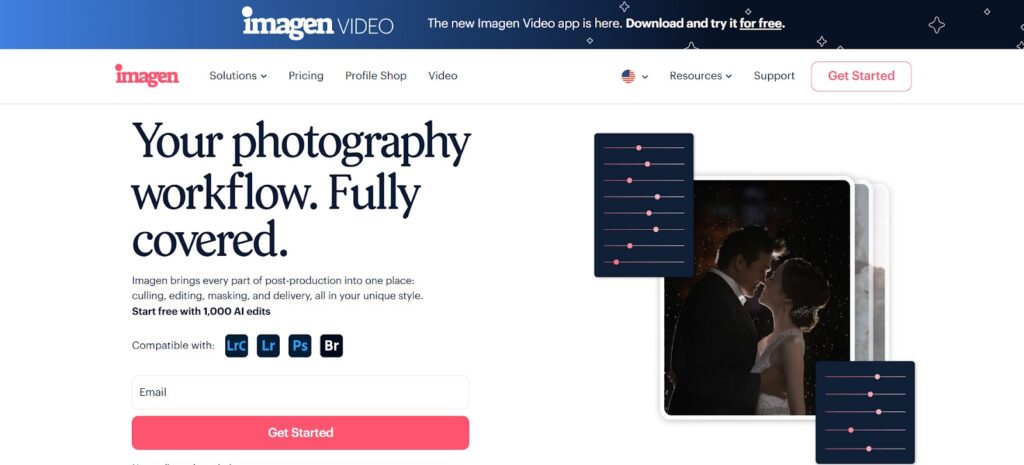
Imagen is a professional AI-powered photo editing application designed for photographers. It automates repetitive tasks like culling, color correction, cropping, and local adjustments while learning your unique style.
It is important to understand what Imagen is not. It is not a web-based editor. You do not edit your photos in a browser. Imagen is a desktop app for macOS and Windows. It works directly with your existing tools: Adobe Lightroom Classic, Lightroom (CC), Photoshop, and Bridge.
Here is the core concept: Imagen analyzes your previous edits. It looks at how you handle warm sunsets, dark reception halls, and bright studio lighting. It builds a “Personal AI Profile” based on this data. When you send a new project, Imagen doesn’t just slap a preset on it. It looks at the metadata of every single new image and edits it the way you would edit it.
The heavy lifting happens in the cloud, which keeps your computer running smooth, but the experience feels local. You upload a catalog, grab a coffee, and minutes later, the edits are ready to download back into your Lightroom catalog.
Core Features of Imagen
To understand why this works for high-volume professionals, we need to look at the specific tools Imagen offers. It tackles the three biggest time-sinks: culling, editing, and backup.
Intelligent AI Culling
Before you edit, you have to cull. This is often the most dreaded part of the job. Staring at 4,000 images to find the 800 keepers is mentally exhausting. Imagen’s Culling Studio handles this for you. It mimics your selection process.
- Face Recognition: It detects subjects and prioritizes shots where they are in focus.
- Blink and Blur Detection: It flags photos where eyes are closed or the focus missed the mark. It is smart enough to know a “kiss” (closed eyes) is a keeper, not a blink.
- Duplicate Grouping: It groups similar bursts of photos and suggests the best one from the series.
You have two ways to cull:
- Keep the Best: You tell Imagen to pick the best images from each scene. This preserves the story while cutting the fluff.
- Cull to Exact Number: If your contract says you deliver 500 photos, you tell Imagen to find the best 500. This is huge for volume photographers who need to hit specific targets.
You can also cull after the edit. This is a unique workflow where you see the edited preview before you make your final selection, giving you a better idea of the final product.
The Power of the Personal AI Profile
This is the heart of Imagen. A preset is static. It adds +50 contrast to every photo, whether it needs it or not. An AI Profile is dynamic.
To create a Personal AI Profile, you upload 3,000 of your previously edited photos (from Lightroom Classic catalogs). Imagen analyzes the “Before” (RAW) and the “After” (your edit). It learns the relationship between the two.
Once trained, the profile applies your style uniquely to each photo. It balances exposure on dark photos and recovers highlights on bright ones, all while keeping your color grade consistent.
- Fine-Tuning: Your style changes over time. Imagen keeps up. As you deliver new galleries, you upload your final edits back to Imagen. The profile learns from these tweaks. It gets smarter and more accurate with every job you shoot.
Talent AI Profiles
If you don’t have 3,000 edited photos, or if you want to try a new look, you can use a Talent AI Profile. These are profiles built by industry-leading photographers. You can adopt their style instantly. You can also use these as a base. You start with a Talent Profile, tweak the results, and eventually train your own Personal Profile based on those tweaks.
Lite Personal AI Profile
For those just starting who have a preset they love but not enough edited catalogs, there is the Lite Personal AI Profile. You upload your preset and answer a few simple questions about your preferences (e.g., “Do you like your photos bright or moody?”). Imagen builds a profile that applies your preset intelligently, adjusting exposure and white balance for consistency.
Advanced AI Tools
Editing is more than just color and exposure. Imagen offers specific AI tools to handle the tedious detail work.
- Crop: It automatically crops your photos to improve composition. You can set specific aspect ratios or let the AI decide.
- Straighten: It fixes crooked horizons instantly.
- Subject Mask: This tool automatically selects the subject and applies local adjustments to make them pop. It separates the subject from the background, adding clarity and brightness where it matters.
- Smooth Skin: For portrait and wedding photographers, this is a massive time saver. It softens skin texture without making it look plastic. You control the intensity.
- Masking (Background/Subject): You can apply specific edits just to the background or just to the subject.
Cloud Storage
Backup is the part of the workflow everyone forgets until it is too late. Imagen integrates cloud storage directly into the app. When you upload a project for editing from Lightroom Classic, Imagen can automatically back up the high-resolution files to the cloud. This happens in the background. It creates a seamless off-site backup of your work without you needing to drag files to a separate service.
Business Benefits of AI Editing
Switching to an AI service like Imagen isn’t just about being lazy. It is a strategic business decision.
Reclaiming Time
The math is simple. If you spend 10 hours editing a wedding, and Imagen can do 90% of that work in 20 minutes, you have gained back 9 hours. What is your hourly rate? If you value your time at $100 an hour, that is $900 saved per wedding. The processing speed is around 0.5 seconds per photo. You can upload a wedding, go make lunch, and have the edits ready when you come back.
Consistency at Scale
Manual editors get tired. AI does not. The 3,000th photo in a catalog gets the same attention as the first. This consistency makes your brand look more professional. Clients know what to expect. You don’t have “off days” where the white balance is slightly cool because your eyes were tired.
Scaling Your Volume
When you edit manually, your income is capped by your time. You can only shoot as much as you can edit. With Imagen, that cap is gone. You can shoot three weddings a weekend. You can take on high-volume school photography contracts. The post-production bottleneck disappears. You can grow your revenue without working more hours.
Workflow: How to Use Imagen
Let’s walk through the actual process of using Imagen. It is designed to fit into your existing workflow, not replace it.
Step 1: Installation and Setup
First, you download the Imagen desktop app. It is compatible with macOS and Windows. You sign up and log in. You will see a clean dashboard. This is your command center. Before you edit, you need a profile.
- Go to the AI Profiles tab.
- Click “Create your own profile”.
- Name your profile.
- Select your catalog type. Imagen works best with Lightroom Classic catalogs.
- Select your photos. You need about 3,000 edited images. These should be final edits that represent your best work. They need to be consistent. Don’t mix your moody black-and-white art shots with your bright and airy family portraits in one profile. Create separate profiles for separate styles.
- Upload. Imagen analyzes the data. This takes time, usually less than 24 hours. You will get an email when your Personal AI Profile is ready.
Step 2: Creating a Project
When you have a new shoot to edit, you start by importing your photos into Lightroom Classic just like you always do.
- Open Imagen.
- Click “Create a Project”.
- Select “Edit”.
- Choose your source. You will drag and drop your Lightroom Classic catalog file (.lrcat) into Imagen.
- Select your photos. You can filter by folders or collections inside the catalog. If you used star ratings to mark your “keepers” in Lightroom, you can tell Imagen to only import photos with 1 star or more.
Step 3: Choosing Your Settings
Now you tell Imagen what to do with those photos.
- Choose your AI Profile. Select the Personal AI Profile you created, or pick a Talent Profile.
- Select AI Tools. Do you want it to crop? Straighten? Smooth skin? Check the boxes for the tools you need.
- Note on Subject Mask: This adds a small cost per photo but saves hours of local brushing.
- Upload. Click “Upload”. Imagen compresses the smart previews and sends the data to the cloud. This is much faster than uploading raw files.
Step 4: The Edit
This is the easy part. You wait. Imagen processes the photos in the cloud. You can close the app or let it run in the background. You will get an email when the edits are done. For a standard wedding, this might take 10 to 20 minutes.
Step 5: Review and Download
When the edits are ready:
- Click “Download to Review” in the Imagen app.
- Open Lightroom Classic. Imagen will write the new settings directly into your catalog. You will see the sliders move.
- Review the work. The edits should be 90-95% done. You might need to tweak exposure on a few tricky shots or adjust the crop on a couple of artistic images.
- Final Polish. Since you are in Lightroom, you have full creative control. Imagen didn’t “bake” the edits into a JPEG. It just moved the sliders for you. You can change anything you want.
Step 6: Fine-Tuning
This is the crucial final step. Once you have finished your review and made your minor tweaks in Lightroom:
- Go back to Imagen.
- Select the project.
- Click “Upload Final Edits”. Imagen takes your tweaks and feeds them back into your Personal AI Profile. It learns. “Oh, she likes the shadows a little more open in these reception halls.” Next time, it will be even closer.
Deep Dive: Genre-Specific Applications
Different types of photography have different pain points. Imagen addresses them specifically.
Wedding and Event Photography
This is the primary use case. The volume is high, and the lighting conditions change constantly. You go from a dark getting-ready room to bright midday sun, to a dim church, to a reception with crazy DJ lights.
- Consistency: Imagen handles these transitions better than batch presets. It balances the exposure between the dark church and the bright exit seamlessly.
- Skin Smoothing: Weddings require people to look their best. The AI Smooth Skin feature applies a subtle softening to faces automatically, saving hours of retouching in Photoshop.
- Culling: The “Group duplicates” feature is a lifesaver for family formals where you shot five frames to ensure no one blinked. Imagen finds the one where everyone’s eyes are open.
Real Estate Photography
Real estate is all about dynamic range and straight lines.
- HDR Merge: Imagen can automatically merge bracketed exposures. This is essential for balancing bright window views with darker interiors.
- Perspective Correction: Crooked walls kill real estate photos. Imagen’s Straighten tool fixes verticals and horizontals automatically.
- Window Pull: (Beta feature) Imagen can help balance the exposure of windows to show the view outside, a task that usually requires complex masking.
- Sky Replacement: For real estate specifically, Imagen can replace blown-out or gray skies with blue ones, adding value to the listing.
School and Sports Photography
This is a volume game. You might shoot 5,000 students in a day.
- Cropping: The “Subject Crop” feature is vital here. It ensures every student’s headshot is cropped identically, with the eyes at the same level. This uniformity is required for yearbooks and school admin software.
- Teeth Whitening: Imagen can apply subtle teeth whitening automatically, adding value to the packages parents buy.
- Speed: When you have thousands of photos, speed is profit. Imagen processes massive catalogs without slowing down.
Alternatives: The Competitor Landscape
It is important to understand where Imagen fits in the broader market. We can categorize the alternatives into two buckets: Traditional Outsourcing and Non-AI Batch Tools.
Traditional Outsourcing
This involves hiring a human editor or a company.
- Pros: Highly customizable communication. You can write paragraphs explaining exactly what you want. A human can do complex Photoshop retouches like removing a trash can from the background.
- Cons: Slow turnaround (days vs. minutes). Expensive (usually per image cost is much higher). Inconsistency (different editors at the company might work on your files).
- Comparison: Imagen is faster and cheaper. It is more consistent because the “editor” (the AI) never has a bad day. However, for complex object removal (like removing a person from the background), a human editor is still sometimes required, though generative AI is catching up.
Preset-Based Batch Editors
These are tools that apply a preset to a whole folder and maybe adjust exposure based on a histogram.
- Pros: Cheap. Fast.
- Cons: “Dumb” editing. A preset applies the same math to every photo. It doesn’t know that one photo is a backlit silhouette and the next is a flash-lit portrait. You spend a lot of time fixing the mistakes.
- Comparison: Imagen analyzes the content of the photo. It knows it is looking at a face, or a sky, or a white dress. It applies edits contextually. The result is much closer to a finished product than a simple batch edit.
Privacy and Security
For professional photographers, client privacy is paramount. You are often shooting private moments or high-profile clients. Imagen is built with security in mind.
- Local Processing: The app runs on your desktop. It reads your catalog locally.
- Smart Previews: In most workflows, you are uploading Smart Previews, not the full high-res raw files (unless you are using the cloud backup feature for delivery). Smart Previews are smaller and contain less data.
- Encryption: Data is encrypted in transit and at rest.
- Ownership: You own your profile. Your editing style is your intellectual property. Imagen does not share your Personal AI Profile with other users.
Tips for Success with Imagen
To get the most out of this service, follow these best practices.
- Consistency is King: When training your profile, be consistent. Don’t upload a catalog where you experimented with five different presets. Upload catalogs that represent your core, consistent brand look.
- Separate Profiles: If you shoot dark and moody weddings but bright and airy newborn sessions, do not mix them into one profile. Create a “Wedding Profile” and a “Newborn Profile”.
- Trust the Fine-Tuning: Your first results will be good. Your results after five fine-tuning uploads will be incredible. Don’t give up if the first batch isn’t 100% perfect. Upload the final edits and let it learn.
- Use the Crop Tool: Many photographers are hesitant to let AI crop. Try it. It is surprisingly good at following the rule of thirds and cleaning up edges. It saves a lot of mouse clicks.
- Check Your Internet: Since Imagen processes in the cloud, a stable internet connection is required for the upload and download phases.
Conclusion
The photography industry is competitive. To survive and thrive, you must be efficient. Spending 40 hours a week editing photos is a recipe for burnout, not business growth. Imagen offers a solution that respects your artistry while removing the drudgery.
By building a Personal AI Profile, you are essentially cloning your own editing brain. You are creating an assistant that works at lightning speed, never sleeps, and edits exactly the way you want. This allows you to focus on what actually generates revenue: shooting, marketing, and serving your clients.
Whether you are a wedding photographer drowning in backlog during peak season, or a real estate photographer needing a 12-hour turnaround, Imagen provides the professional photo editing services necessary to scale your business in the modern era. It is not about replacing the photographer. It is about empowering the photographer to be a business owner first, and an editor second.
Frequently Asked Questions
1. Is Imagen a web-based app? No, Imagen is a desktop application that you install on your macOS or Windows computer. It connects to the internet to use cloud processing power for the heavy AI lifting, but the interface and file management happen locally on your machine.
2. Does Imagen work with my RAW files? Yes, Imagen supports RAW file formats from all major camera manufacturers (Canon, Nikon, Sony, Fujifilm, etc.). It edits the metadata of these files within your Lightroom catalog.
3. Do I need to be online to use Imagen? Yes, you need an internet connection to upload your catalog for processing and to download the finished edits. However, the initial setup and final review in Lightroom Classic happen locally.
4. Can I use Imagen if I don’t use Lightroom Classic? Yes, Imagen supports Adobe Lightroom (CC), Photoshop, and Bridge via Adobe Camera Raw (ACR). However, the workflow is most streamlined and feature-rich when used with Lightroom Classic.
5. How many photos do I need to train a Personal AI Profile? You need at least 2,000 edited photos to train a Personal AI Profile. These should be photos you have already edited in your specific style. If you don’t have enough, you can use a Lite Personal AI Profile (which uses a preset) or a Talent AI Profile.
6. Does Imagen actually crop my photos? Yes, if you enable the AI Crop tool. It analyzes the composition and applies a crop. This is non-destructive in Lightroom, so you can always re-crop or undo it if you don’t like the AI’s choice.
7. Is my editing style shared with other users? No. Your Personal AI Profile is unique to you. It is trained on your data and is accessible only by your account. It is not shared with the community or other photographers.
8. Can I use Imagen for culling only? Yes. You can use Imagen’s Culling Studio to select your best images without applying any edits. You can then edit them yourself or send them to be edited by the AI.
9. How much time does it take to edit a wedding? For a typical wedding gallery of around 1,000 to 4,000 photos, the processing time in the cloud is usually under 20 minutes. The upload and download times depend on your internet connection speed.
10. What happens if I don’t like the edits? Because Imagen applies edits non-destructively in Lightroom, you have full control to change them. You can tweak exposure, color, or any other setting. Afterward, you should upload these “Final Edits” back to Imagen to fine-tune your profile so it doesn’t make the same mistake next time.
11. Does Imagen support skin smoothing? Yes, Imagen offers an AI Smooth Skin feature. It automatically detects faces and applies skin smoothing. You can adjust the strength of this effect to keep it natural.
12. Is Imagen secure? Yes. Imagen takes security seriously. Your photos and catalogs are processed securely in the cloud. We do not use your photos for anything other than training your specific profile and processing your orders.
13. Can I use Imagen on multiple computers? Yes, you can install the desktop app on multiple computers. You log in with your account credentials. Note that your Lightroom catalogs need to be accessible on the computer you are working on.